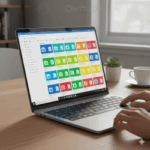
Here’s a productivity gem in Microsoft OneDrive you might not have spotted yet: you can now change the colour of your folders
At first glance, it might sound like a purely cosmetic tweak. But in practice, it’s surprisingly powerful. Think about how you’d use coloured binders, sticky notes, or labels in a physical office—each colour helps you instantly identify the right project or priority. This new feature is the digital equivalent of that system.
By assigning colours to your folders, you can:
- Highlight important projects so they stand out immediately
- Cut down the time spent scanning through long lists of identical-looking folders
- Create a workspace that feels more organised, personalised, and easier to navigate
How to Change Folder Colours in OneDrive
It’s quick and straightforward:
- Make sure OneDrive is running on your Windows device.
- Right-click the folder you want to customise.
- Under the OneDrive menu, select Folder Colour.
- Choose the shade that works best for you.
Your choice will sync across supported devices, so your colour-coded system follows you wherever you use OneDrive. And if you’re on OneDrive for Business, you can even apply the same colour changes directly in the web version.
Why It Matters
This isn’t the kind of feature that will make headlines, but it’s one of those small touches that adds up over time. When your digital workspace is easier to navigate, your day flows more smoothly. And in business, those little efficiency wins—saving seconds here and there—can make a real difference
Do you prefer to keep things tidy and colour-coded, or are you more of a “search when I need it” type?