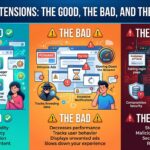
Browser extensions can be incredibly useful. Whether you’re blocking adverts, managing passwords, checking grammar, or saving money while shopping online, extensions can add powerful features to Chrome, Edge, Firefox, and other web browsers.
However, not all browser extensions are created equal.
At Cambridge PC Support, we regularly encounter computers suffering from slow performance, intrusive adverts, unexpected browser behaviour, and even security issues caused by problematic extensions. While many are completely legitimate, some can pose significant privacy and security risks.
So how do you tell the difference between a helpful browser extension and one that should be avoided?
What Are Browser Extensions?
Browser extensions are small add-ons that enhance the functionality of your web browser.
Popular examples include:
Password managers
Ad blockers
Grammar checkers
Screenshot tools
Dark mode extensions
Shopping comparison tools
Productivity utilities
They can save time and improve your browsing experience, which explains why millions of people install them every day.
The Good: Useful Extensions That Improve Security and Productivity
Not all browser extensions are bad. In fact, some can genuinely improve both security and usability.
Examples include:
Password Managers
Password manager extensions can help you:
Generate strong passwords
Store login details securely
Automatically fill login forms
Avoid reusing passwords
This is one of the safest and most effective ways to improve your online security.
Ad Blockers
A reputable ad blocker can:
Reduce distracting adverts
Improve page loading speeds
Block malicious advertising networks
Enhance privacy
Many websites display legitimate advertisements, but malicious adverts occasionally appear and can expose users to scams or unwanted downloads.
Productivity Tools
Extensions for note-taking, task management, grammar checking, or tab organisation can make day-to-day browsing more efficient.
For many users, these tools quickly become indispensable.
The Bad: Extensions That Slow Everything Down
Every browser extension consumes resources.
While one or two well-designed extensions may have little impact, problems often arise when users install dozens of them.
Symptoms can include:
Slow browser startup
Longer page load times
Increased memory usage
Browser crashes
Reduced battery life on laptops
Many people are surprised to discover they have extensions installed that they haven’t used in years.
If your browser feels sluggish, reviewing installed extensions is often a good place to start.
The Dangerous: Extensions That Collect Too Much Data
This is where things become more concerning.
Many extensions request extensive permissions during installation.
Some may ask for access to:
All websites you visit
Your browsing history
Website content
Clipboard data
Login information
While some permissions are required for legitimate functionality, others can be excessive.
The real question is: do you trust the developer?
If an extension can see everything you do online, it may have access to a significant amount of sensitive information.
Free Doesn’t Always Mean Free
Many browser extensions are offered at no cost.
That sounds great until you ask how the developer makes money.
Some free extensions generate revenue through:
Advertising
Data collection
Affiliate marketing
Selling browsing behaviour analytics
The extension may not charge you money, but your browsing activity could become part of the product.
This is why it’s important to review privacy policies and permissions before installing anything.
Fake Extensions Are a Growing Problem
Cybercriminals know that browser extensions are popular.
As a result, fake or malicious extensions occasionally appear in browser stores posing as:
Password managers
AI tools
Cryptocurrency utilities
Coupon finders
Video downloaders
These malicious extensions may:
Steal login details
Track browsing activity
Inject adverts
Redirect searches
Display scam notifications
In some cases, an extension may appear perfectly legitimate for months before a harmful update is released.
Warning Signs of a Suspicious Extension
Be cautious if an extension:
Has very few reviews
Has recently changed ownership
Requests excessive permissions
Makes unrealistic claims
Generates constant pop-ups
Changes your search engine without permission
Redirects you to unfamiliar websites
If something feels suspicious, it’s usually better to avoid installing it.
Review Your Extensions Regularly
Most people rarely review the extensions installed in their browser.
However, it’s worth checking periodically:
Google Chrome
Click the three dots menu
Select Extensions
Choose Manage Extensions
Microsoft Edge
Click the three dots menu
Select Extensions
Choose Manage Extensions
Remove anything you no longer use or recognise.
If you’re unsure what an extension does, it’s often safest to uninstall it.
Less Is Often Better
Many users install extensions hoping to improve their browsing experience, only to end up with a cluttered browser that is slower and less secure than before.
A good rule of thumb is:
Install only what you genuinely need.
Stick to reputable developers.
Review permissions carefully.
Remove unused extensions regularly.
The fewer extensions you run, the smaller your potential attack surface becomes.
What If Your Browser Has Already Been Affected?
Problematic extensions often cause symptoms such as:
Constant pop-up adverts
Browser redirects
Unexpected toolbars
Search engine changes
Slow performance
Fake virus warnings
Excessive notifications
If you’re experiencing any of these issues, a browser extension may be the culprit.
Fortunately, removing the extension and cleaning the browser is often enough to restore normal operation.
Final Thoughts
Browser extensions can be fantastic tools. They can enhance productivity, improve security, and make day-to-day browsing more convenient. However, they can also introduce privacy concerns, reduce performance, and in some cases expose users to scams or malware.
The key is to be selective. Install only trusted extensions, review permissions carefully, and don’t be afraid to remove anything you no longer use.
When it comes to browser extensions, fewer, well-chosen tools are almost always better than dozens of unnecessary add-ons.
Concerned about browser security or suspicious pop-ups? Cambridge PC Support can help identify problematic browser extensions, remove unwanted software, improve online security, and ensure your computer is running safely and efficiently.