A Small Windows Upgrade That Feels Like a Big Win
You know those subtle tech improvements that make you stop and think, “Why hasn’t this always been a thing?” Microsoft just rolled out one of those—and it’s a game-changer for anyone who works with files all day.
Let’s say you want to quickly peek inside a file—maybe a Word document, a PDF, a photo, or even a PowerPoint—without going through the hassle of launching the full app. Until recently, that kind of instant preview was something Mac users could brag about. Their “Quick Look” feature lets them tap the Spacebar and instantly see what’s inside a file. Fast, simple, efficient.
Now, Windows 11 users finally get to join the club
Introducing Peek, a sleek new feature bundled inside Microsoft’s free PowerToys app.
What Is PowerToys?
PowerToys is a collection of clever utilities that Microsoft quietly maintains for power users—those who like to squeeze a little more functionality out of their operating system. It’s full of tools that feel like they should be built into Windows by default, but aren’t (yet).
Peek is one of the newest additions, and it’s designed to make file browsing faster and smarter.
How Peek Works
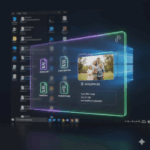
Once installed, Peek lets you preview almost any file directly from File Explorer—the main hub where you browse folders and files. Just select a file and tap the Spacebar. Instantly, a lightweight preview window pops up, showing you the contents without launching Word, Excel, Photoshop, or any other heavy-duty app.
Need a quick glance at a photo?
Want to double-check the contents of a PDF?
Curious what’s inside a PowerPoint slide deck?
It’s a tiny shortcut that saves you seconds every time you use it—and those seconds add up fast. Over the course of a week, it can mean real time saved and fewer interruptions to your workflow.
How to Get Started
To enable Peek on your Windows 11 device:
1. Install PowerToys – It’s free from the Microsoft Store
2. Update to version 0.95 or newer – Peek is only available in recent builds
3. Activate Peek – Go to Settings > File Management > Peek and set the activation key to Spacebar
That’s it. You’re now previewing files like a pro—no more waiting for apps to load just to check what’s inside.
Why It Matters
It’s amazing how a small feature like this can make your computer feel more responsive, intuitive, and enjoyable to use. The less time you spend waiting for programs to open, the more time you can spend actually getting things done—or maybe even wrapping up early for once.
Whether you’re managing documents, reviewing images, or just tidying up your folders, Peek makes the process smoother and smarter. And best of all, it’s free, easy to install, and built by Microsoft themselves.
Welcome to the future of file browsing—finally available on Windows.