Cambridge Computer Laptop Repairs & Services Blog

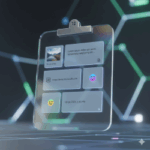
What’s Lurking in Your Windows Clipboard?

Be honest—when was the last time you thought about what’s sitting in your Windows Clipboard?

If you’re like most people, the answer is probably “never.” It’s one of those background features we use constantly without giving it a second thought. You copy some text, grab a link, maybe take a screenshot, and paste it where you need it. Simple, right?

But here’s the catch: your Clipboard doesn’t just remember the harmless stuff. It can also hold onto sensitive information—things like passwords, ID documents, private emails, or customer data. And unless you’ve cleared it out, that information could still be sitting there, quietly waiting to be pasted again… or discovered by someone else.

Why Clipboard History Can Be a Hidden Risk

Imagine this scenario: someone borrows your laptop for a few minutes. Or worse, a hacker gains access remotely. With just a couple of clicks, they press Windows + V and open your Clipboard history. Suddenly, they’re looking at everything you’ve copied recently—potentially including login credentials, financial details, or confidential business information.

That’s not just inconvenient. It’s a serious privacy risk. One careless copy-paste could lead to identity theft, fraud, or a data breach.

The Clipboard Is Useful—But It Needs Maintenance

Don’t get us wrong: the Clipboard is a fantastic productivity tool. It makes everyday tasks faster and smoother. But like any tool, it needs a bit of upkeep to stay safe.

Here’s how to take control:

View and Manage Your Clipboard History
– Press Windows + V to open your Clipboard history
– Click the three dots next to any item to delete it individually—even pinned items
– Want a fresh start? Hit Clear All to wipe everything at once

Disable Clipboard History If You Prefer
– Go to Settings > System > Clipboard
– Toggle off Clipboard history to stop Windows from saving copied items

This isn’t just digital housekeeping—it’s a smart way to protect yourself, your team, and your customers from unnecessary exposure. Think of it like shredding sensitive paperwork instead of leaving it lying around the office. Only this time, it’s happening inside your PC.

A Quick Question…

Have you ever stumbled across something on your computer—an old file, a saved password, a forgotten screenshot—and thought, “Yikes, I should really clear that out”?

Your Clipboard might be one of those places. And now’s a great time to check.
What’s Lurking in Your Windows Clipboard

PowerToys Peek Utility

A Small Windows Upgrade That Feels Like a Big Win

You know those subtle tech improvements that make you stop and think, “Why hasn’t this always been a thing?” Microsoft just rolled out one of those—and it’s a game-changer for anyone who works with files all day.

Let’s say you want to quickly peek inside a file—maybe a Word document, a PDF, a photo, or even a PowerPoint—without going through the hassle of launching the full app. Until recently, that kind of instant preview was something Mac users could brag about. Their “Quick Look” feature lets them tap the Spacebar and instantly see what’s inside a file. Fast, simple, efficient.

Now, Windows 11 users finally get to join the club

Introducing Peek, a sleek new feature bundled inside Microsoft’s free PowerToys app.

What Is PowerToys?

PowerToys is a collection of clever utilities that Microsoft quietly maintains for power users—those who like to squeeze a little more functionality out of their operating system. It’s full of tools that feel like they should be built into Windows by default, but aren’t (yet).

Peek is one of the newest additions, and it’s designed to make file browsing faster and smarter.

How Peek Works

Once installed, Peek lets you preview almost any file directly from File Explorer—the main hub where you browse folders and files. Just select a file and tap the Spacebar. Instantly, a lightweight preview window pops up, showing you the contents without launching Word, Excel, Photoshop, or any other heavy-duty app.

Need a quick glance at a photo?
Want to double-check the contents of a PDF?
Curious what’s inside a PowerPoint slide deck?

It’s a tiny shortcut that saves you seconds every time you use it—and those seconds add up fast. Over the course of a week, it can mean real time saved and fewer interruptions to your workflow.

How to Get Started

To enable Peek on your Windows 11 device:

1. Install PowerToys – It’s free from the Microsoft Store
2. Update to version 0.95 or newer – Peek is only available in recent builds
3. Activate Peek – Go to Settings > File Management > Peek and set the activation key to Spacebar

That’s it. You’re now previewing files like a pro—no more waiting for apps to load just to check what’s inside.

Why It Matters

It’s amazing how a small feature like this can make your computer feel more responsive, intuitive, and enjoyable to use. The less time you spend waiting for programs to open, the more time you can spend actually getting things done—or maybe even wrapping up early for once.

Whether you’re managing documents, reviewing images, or just tidying up your folders, Peek makes the process smoother and smarter. And best of all, it’s free, easy to install, and built by Microsoft themselves.

Welcome to the future of file browsing—finally available on Windows.

PowerToys Peek Utility

AI Is Coming to Every Windows 11 PC — And It’s About to Change Everything

Microsoft has just confirmed something big: artificial intelligence is being integrated into all Windows 11 computers. And this isn’t just a minor upgrade—it’s a fundamental shift in how we interact with our devices.

For decades, we’ve relied on the mouse and keyboard to navigate our digital world. Now, Microsoft is introducing a new layer of intelligence that brings voice, vision, and automation to the core of the Windows experience. Your PC is about to become more intuitive, more responsive, and far more helpful.

Here’s what’s rolling out:—

Copilot Voice: Talk to Your Computer

Soon, you’ll be able to say “Hey Copilot” and start a conversation with your PC—no typing required.

Want to open an app, adjust a setting, or ask a question? Just speak.
Need to check your calendar, send an email, or launch a document? Say the word.
When you’re done, simply say “Goodbye,” and Copilot will politely sign off.

It’s like having a digital assistant built into your operating system, ready to help whenever you need it—without digging through menus or clicking around.

Copilot Vision: Your PC Understands What You’re Working On

This feature gives Copilot the ability to “see” what’s on your screen—if you choose to allow it.

It can recognize the app you’re using, the task you’re performing, and the context of your work. That means smarter, more relevant help in real time.

– Struggling with a complex spreadsheet? Copilot can explain formulas or highlight errors.
– Editing a photo? It can suggest enhancements.
– Playing a game? It might offer tips or shortcuts.

It’s contextual awareness that turns your PC into a true collaborator.

Copilot Actions: Let AI Take the Wheel

This is where things get really interesting. Microsoft is testing a feature that allows Copilot to take direct action on your behalf.

You could say:
“Hey Copilot, find and delete any duplicate photos from this folder.”
And it will do exactly that—navigating your apps, clicking buttons, typing commands, and managing files just like a human would.

This goes far beyond voice control. It’s intelligent delegation. Microsoft calls it “using the mouse and keyboard less,” but it’s really about letting your computer handle the busywork so you can focus on what matters.

You Stay in Control

With great power comes great responsibility, and Microsoft is making sure users stay in charge. Everything Copilot does is opt-in, transparent, and reversible. You can pause or disable it at any time, and you’ll always know what it’s doing.

The Future of Windows Is Conversational

Microsoft’s Yusuf Mehdi described this shift—from typing to talking—as potentially as transformative as the arrival of the mouse and keyboard. That’s a bold statement, but it’s easy to see why.

Windows 11 is evolving into a platform you don’t just use—you collaborate with it. You speak to it, it understands your context, and soon, it’ll be able to act on your behalf.

Whether you’re a casual user or a power user, this new wave of AI features is designed to make your computer feel more like a partner than a tool.

And that’s something worth getting excited about.

AI Is Coming to Every Windows 11 PC


Browser Hacks: The Threat Hiding in Plain Sight

When most people think about cyber attacks, they picture something happening far away—on a company’s servers, deep inside a corporate network, or somewhere “out there” in the cloud. But the reality is shifting. Increasingly, attackers aren’t targeting the big infrastructure first. They’re going after the weakest link: your device and your browser.

The Rise of Client-Side Attacks

A recent report highlights a growing trend: cyber criminals are focusing on mobile browsers as a way to bypass traditional security protections. These attacks are known as client-side attacks because instead of breaking into a company’s systems, the malicious code runs directly on your phone or inside your browser window.

Here’s how it typically unfolds:

  • Malicious scripts are injected into popular website themes or plugins (WordPress is a common target).
  • You visit an infected site, and suddenly your browser displays a prompt that looks completely legitimate.
  • The fake prompt tricks you into installing an app—something disguised as ordinary, like a crypto wallet, a video player, or even an adult app.
  • Once installed, the app persists. Closing your browser doesn’t stop it. Instead, it quietly steals login credentials, drains cryptocurrency wallets, or hijacks session tokens to maintain access to your accounts.

Why These Attacks Work

The scariest part is how convincing they look. Full-screen prompts, familiar logos, and browser-style messages combine to create something most people would trust without hesitation.

Mobile platforms are especially vulnerable. Compared to desktop browsers, they often have weaker protections. And on a small screen, when you’re distracted or on the move, it’s much easier to miss the subtle warning signs. That’s exactly what attackers are counting on.

What You Can Do

For businesses, this means tightening controls around websites and apps—especially third-party scripts that can be compromised. Continuous monitoring and strong security practices are essential.

For individuals, the defense is simpler but just as critical: be cautious.

  • Don’t install apps from unexpected browser prompts.
  • Treat any login screen that feels “off” with suspicion—even if it looks like it’s from Google or another trusted brand.
  • Remember that cyber criminals know the fastest way into a business is often through the everyday devices employees use.

Strong firewalls and antivirus software are important, but they’re not enough if attackers can trick users directly at the browser level. Awareness and vigilance are your best shields.


A Final Thought

If a browser popup suddenly told you, “Install this app to continue,” would you pause and think twice—or would you just click? That moment of hesitation could be the difference between staying safe and handing over your digital life to an attacker.

Browser Hacks

A Simple OneDrive Trick That Makes Organisation Easier

Here’s a productivity gem in Microsoft OneDrive you might not have spotted yet: you can now change the colour of your folders

At first glance, it might sound like a purely cosmetic tweak. But in practice, it’s surprisingly powerful. Think about how you’d use coloured binders, sticky notes, or labels in a physical office—each colour helps you instantly identify the right project or priority. This new feature is the digital equivalent of that system.

By assigning colours to your folders, you can:

  • Highlight important projects so they stand out immediately
  • Cut down the time spent scanning through long lists of identical-looking folders
  • Create a workspace that feels more organised, personalised, and easier to navigate

How to Change Folder Colours in OneDrive

It’s quick and straightforward:

  1. Make sure OneDrive is running on your Windows device.
  2. Right-click the folder you want to customise.
  3. Under the OneDrive menu, select Folder Colour.
  4. Choose the shade that works best for you.

Your choice will sync across supported devices, so your colour-coded system follows you wherever you use OneDrive. And if you’re on OneDrive for Business, you can even apply the same colour changes directly in the web version.

Why It Matters

This isn’t the kind of feature that will make headlines, but it’s one of those small touches that adds up over time. When your digital workspace is easier to navigate, your day flows more smoothly. And in business, those little efficiency wins—saving seconds here and there—can make a real difference


Do you prefer to keep things tidy and colour-coded, or are you more of a “search when I need it” type?

A Simple OneDrive Trick


By |December 29th, 2025|Uncategorized|0 Comments

Copilot Is About to Get More Hands-On

Copilot is evolving—and this time, it’s going beyond answering questions or drafting emails. Soon, it will be able to work directly with your files in a way that feels much closer to having a real digital assistant at your side.

You may have already noticed Copilot appearing more often across Windows and Microsoft apps. Up until now, its strengths have mostly been web-based: summarising documents, writing emails, or pulling information from online sources. Helpful, yes—but not exactly transformative.

That’s about to change.

Introducing Copilot Actions for Local Files

Microsoft has announced a new capability called Copilot Actions, designed to handle everyday file tasks right on your computer. Instead of just advising you, Copilot will be able to take action using your installed apps and tools.

Imagine this:

  • “Straighten these photos and delete any duplicates.”
  • “Rename these invoices by date.”
  • “Zip these files and email them to Andy.”

With a single command, Copilot will get to work—organising, editing, and managing files while you move on to something more important. You’ll even be able to watch its progress step by step on your screen, and stop it at any time if you change your mind.

A Digital Assistant That Acts, Not Just Advises

This marks a shift in what Copilot represents. It’s no longer just a smart helper that suggests or explains—it’s becoming a hands-on assistant that can do the work for you. Think of it as delegating the dull, repetitive tasks so you can focus on the creative, strategic, or human parts of your job.

Careful Rollout

Microsoft is being cautious with this powerful new feature. Copilot Actions will first be tested with Windows Insiders—the early adopters who trial new updates—before being released more widely. That measured approach makes sense, given the sensitivity of letting AI interact directly with your files.

The reassuring part? Copilot will always ask for your permission before making any changes. You remain in control, with the ability to pause, stop, or decline actions at any point.

The Bigger Picture

It’s still early days, but the direction is clear: Windows is becoming more proactive, more collaborative, and more helpful. Copilot is moving from being a tool you consult to being an assistant you can rely on.

And when you think about the time saved from delegating tasks like renaming, organising, converting, or moving files, the impact on everyday productivity could be huge.

Your computer isn’t just a machine anymore—it’s starting to feel like a teammate.

Copilot Is About to Get More Hands-On

By |December 25th, 2025|Uncategorized|0 Comments

Your PC Is About to Do More Than You Think

Think your computer is just a screen, a keyboard, and a mouse? Think again.

Microsoft has announced that Windows 11 is evolving into an “Agentic OS.” It might sound like tech jargon, but the idea is simple—and it’s a big deal.

What Does “Agentic” Mean?

In plain terms, it means your PC will soon be able to act on your behalf. Instead of just responding with information, it will carry out tasks for you.

Imagine having a personal digital assistant built right into your computer—one that doesn’t just answer questions but actually does the work.

You could say:

  • “Hey Copilot, tidy up my desktop and save those screenshots in a folder.”

And Copilot would:
🪄 Find the screenshots
🪄 Create a new folder
🪄 Move them all in there for you

All without you clicking a single thing.

Agentic AI in Action

This is what Agentic AI is all about: intelligence that can think, plan, and act based on your instructions. It works through Copilot Actions, which connect your words directly to real actions on your PC.

Instead of manually launching apps, typing commands, or dragging files around, you’ll simply tell Copilot what needs doing—and it will make it happen safely, under your supervision.

The Three Pillars of Agentic Windows

Microsoft is building this new experience around three core abilities:

  • Copilot Voice: You talk, it listens and understands.
  • Copilot Vision: It can “see” what’s on your screen and understand context.
  • Copilot Actions: It carries out the tasks for you.

All of this is powered by an open standard called the Model Context Protocol, which ensures AI can work securely with your apps while keeping you in full control.

And yes—you’ll always be able to pause, stop, or override Copilot. Transparency and user control are built in from the start.

Why This Matters

We’re still at the early stages, but this is the clearest sign yet that the way we interact with computers is about to change forever.

No more clicking through endless folders.
No more opening five apps just to finish one job.
Just say what you need, and let Windows handle the rest.

The distant future suddenly feels a lot closer

Your PC Is About to Do More Than You Think

By |December 22nd, 2025|Uncategorized|0 Comments

How To Completely Remove Copilot From Windows

You can remove Copilot from Windows 11. In newer builds, Copilot is treated like a standard app, so you can uninstall it directly from Settings > Apps > Installed Apps. If it’s still integrated into your taskbar or system, you may need to disable it using Group Policy Editor or the Registry Editor.


Step-by-Step: How to Remove Copilot from Windows 11

1. Uninstall Copilot as an App (Easiest Method)

  • Open Settings from the Start menu.
  • Go to Apps > Installed Apps.
  • In the search bar, type Copilot.
  • Click the three dots next to it and select Uninstall.
  • Restart your PC to confirm removal.

This works if your version of Windows 11 treats Copilot as a standalone app (common after updates in late 2024 and 2025).


2. Remove Copilot from the Taskbar

If Copilot still appears on your taskbar after uninstalling:

  • Right-click the taskbar and open Taskbar Settings.
  • Toggle Copilot (preview) off.

3. Disable Copilot via Group Policy (Advanced)

For Pro/Enterprise editions:

  • Press Win + R, type gpedit.msc, and press Enter.
  • Navigate to:
    User Configuration > Administrative Templates > Windows Components > Windows Copilot
  • Double-click Turn off Windows Copilot.
  • Set it to Enabled.
  • Restart your PC.

This prevents Copilot from running at all.


4. Disable Copilot via Registry Editor (Advanced)

For Home editions (no Group Policy):

  • Press Win + R, type regedit, and press Enter.
  • Navigate to:
    HKEY_CURRENT_USER\Software\Policies\Microsoft\Windows\WindowsCopilot
  • If the key doesn’t exist, create it.
  • Add a new DWORD (32-bit) Value named TurnOffWindowsCopilot.
  • Set its value to 1.
  • Restart your PC.

5. Prevent Reinstallation

Windows updates may reinstall Copilot. To stop this:

  • Use AppLocker policies (for IT admins).
  • Or re-check after updates and repeat the uninstall/disable steps.

Why Remove Copilot?

  • Privacy concerns: Some users dislike AI integration.
  • Performance: Removing background features can free resources.
  • Clean workspace: No unwanted icons or pop-ups.

✅ Summary:
To completely remove Copilot, first uninstall it via Settings > Apps, then disable it in Taskbar Settings. For full removal, use Group Policy or Registry Editor depending on your Windows edition. This ensures Copilot won’t run or reappear after updates.

Completely Remove Copilot From Windows

By |December 18th, 2025|Uncategorized|0 Comments

Migrating To A New Laptop

Migrating to a new laptop isn’t just about plugging it in and turning it on—it’s a process of moving your digital life smoothly and securely. Here’s a clear breakdown of what’s involved:


🔑 Preparation Before Migration

  • Back up your data: Use OneDrive, Google Drive, iCloud, or an external hard drive to ensure all files are safe.
  • List essential apps: Note down the software you rely on (Office, browsers, creative tools, security apps).
  • Check licenses & subscriptions: Some apps need deactivation on the old laptop before reactivation on the new one.
  • Update your old system: Running the latest updates ensures compatibility when transferring files or settings.

📂 Transferring Files & Settings

  • Cloud sync: If you use OneDrive, Dropbox, or Google Drive, most files will appear automatically once you sign in.
  • External drive transfer: Copy documents, photos, and videos manually if you prefer offline migration.
  • Windows built-in tools: Use features like Windows Backup & Restore or PCmover Express to move files and settings.
  • Email & browser data: Export bookmarks, saved passwords, and email archives to avoid losing personal data.

⚙️ Setting Up the New Laptop

  • Install updates: Make sure Windows and drivers are fully updated for performance and security.
  • Reinstall apps: Download fresh versions of your essential software from trusted sources.
  • Restore settings: Adjust personalization (wallpapers, taskbar, accessibility options) to match your old setup.
  • Configure accounts: Sign in to Microsoft, Google, or Apple accounts to sync calendars, contacts, and emails.

🔒 Security & Privacy

  • Install antivirus/security tools: Ensure your new laptop is protected from day one.
  • Enable encryption: BitLocker (Windows) or FileVault (Mac) keeps your files secure.
  • Check permissions: Review app permissions and privacy settings to avoid unnecessary data sharing.
  • Set up backups: Schedule automatic backups to cloud or external drives for ongoing protection.

📱 Extras to Consider

  • Peripheral setup: Connect printers, external monitors, and accessories.
  • Network configuration: Save Wi-Fi passwords and VPN settings.
  • Test everything: Open key files, run apps, and check hardware (keyboard, webcam, speakers) to confirm all works.

✅ In short: Migrating to a new laptop involves backing up your data, transferring files and settings, reinstalling apps, configuring accounts, and securing the system. Done properly, it ensures you don’t lose productivity or personal information during the transition.

Migrating To A New Laptop

By |December 15th, 2025|Uncategorized|0 Comments

Five Essential Ways to Protect Yourself from Being Hacked

In today’s digital world, criminals don’t just operate in the physical space—they thrive online. From hacking attempts to illicit activities on the dark web, cybercrime is a growing threat that can affect anyone. Protecting yourself requires a mix of smart tools, good habits, and awareness. Here are five key strategies to keep your information safe:


1. Understand the Dark Web

The dark web is often portrayed as a mysterious, easily accessible underworld of crime. In reality, it’s not as simple to reach as typing a web address into your browser. Specialized software and knowledge are required, and while it does host illegal marketplaces and hacking forums, it also contains legitimate uses for privacy-focused individuals. The important takeaway: criminals use this hidden part of the internet to trade stolen data, malware, and hacking services. Knowing it exists—and that your information could end up there—underscores why proactive protection is vital.


2. Use a Password Manager

Passwords are the first line of defense against hackers, but many people reuse weak ones across multiple accounts. That’s like locking your front door with a flimsy latch.

  • A password manager securely stores all your login details in an encrypted vault.
  • It generates strong, unique passwords for each account, reducing the risk of a single breach compromising everything.
  • With autofill features, you don’t have to remember dozens of complex combinations—your manager does the work for you.

Think of it as a digital safe that keeps your keys organized and secure.


3. Install Reliable Antivirus Software

Antivirus programs are more than just virus detectors—they’re comprehensive shields against a wide range of threats:

  • Viruses, worms, and trojans that can damage files or steal information.
  • Spyware and ransomware designed to monitor your activity or lock your system until you pay.
  • Real-time protection that scans downloads, emails, and websites before they can harm your device.

Keeping your antivirus updated ensures it can recognize the latest threats. It’s like having a guard dog that constantly learns new tricks to keep intruders out.


4. Protect Your Cards with an RFID-Blocking Wallet

Technology thieves don’t always need physical access to your wallet—they can use RFID scanners to skim data from contactless cards.

  • RFID (Radio-Frequency Identification) uses radio waves to transmit information between a card and a reader.
  • Criminals with portable scanners can capture this data without you even noticing.
  • An RFID-blocking wallet creates a shield that prevents these signals from being intercepted.

It’s a simple, inexpensive step that adds an extra layer of protection to your everyday life.


5. Use Your Common Sense

Sometimes the most effective defense is simply being cautious:

  • Don’t click suspicious links or attachments in emails.
  • Be wary of “too good to be true” offers online.
  • Avoid oversharing personal details on social media.
  • Double-check websites before entering sensitive information.

Cybercriminals often rely on human error rather than technical skill. Staying alert and skeptical can stop many attacks before they begin.


Final Thoughts

Cybersecurity isn’t about paranoia—it’s about preparation. By combining smart tools like password managers and antivirus software with practical habits like cautious browsing and RFID protection, you can significantly reduce your risk of being hacked. Remember: criminals may be online, but so are the defenses.

Five Essential Ways to Protect Yourself from Being Hacked

By |December 14th, 2025|Uncategorized|0 Comments
Go to Top