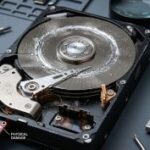
A failing hard drive is one of the most stressful computer problems you can face. Unlike many other issues, when a drive starts to die, your personal files — photos, documents, emails, work — are at risk. The good news is that most hard drives give warning signs before they fail completely. Recognising these early symptoms can save you from data loss and costly recovery work.
Below are the most common signs your hard drive may be on its way out, and what you should do if you notice them.
1. Your Computer Is Slower Than Usual
A dying hard drive often struggles to read and write data, causing:
Long boot times
Programs taking ages to open
Frequent freezing or stuttering
If your PC feels like it’s “thinking” far too long, especially during simple tasks, the drive may be failing.
2. Frequent Crashes or Blue Screens
Random crashes, lockups, or the dreaded Blue Screen of Death can indicate corrupted data or failing drive sectors. If these issues happen more often during file-heavy tasks (opening photos, loading games, copying files), the hard drive is a prime suspect.
3. Files Going Missing or Becoming Corrupted
If documents won’t open, photos appear damaged, or files randomly disappear, it’s a major red flag. Hard drives store data in sectors, and when those sectors start failing, your files are often the first to suffer.
4. Strange Clicking or Grinding Noises
Mechanical hard drives (HDDs) contain moving parts. When those parts wear out, you may hear:
Clicking
Grinding
Whirring that wasn’t there before
This is one of the clearest signs of imminent failure. If your drive is making unusual noises, stop using the computer immediately and back up your data.
5. Overheating
A failing drive may run hotter than normal. Symptoms include:
The PC feeling unusually warm
Fan noise increasing
Sudden slowdowns during heavy use
Overheating accelerates drive failure, so it’s both a symptom and a cause.
6. SMART Warnings
Windows may show alerts like:
“SMART status bad. Backup and replace.”
SMART (Self-Monitoring, Analysis and Reporting Technology) is built into most drives and can detect early signs of failure. If you see a SMART warning, take it seriously — the drive is already in trouble.
7. Bad Sector Messages
If Windows reports bad sectors during scans or you see errors when copying files, your drive may be developing physical damage. Bad sectors tend to spread over time, eventually making the drive unusable.
What to Do If You Suspect Your Hard Drive Is Failing
1. Back Up Your Data Immediately
Use an external drive or cloud storage. Don’t wait — every minute counts.
2. Stop Installing or Downloading Anything
Writing new data to a failing drive can make things worse.
3. Run a Health Check
Tools like:
Windows’ built‑in CHKDSK
CrystalDiskInfo
can give you a clearer picture of the drive’s condition.
4. Replace the Drive
If the drive is mechanical (HDD), upgrading to an SSD is the best move. It’s faster, quieter, and far more reliable.
5. Seek Professional Help
If the drive is severely damaged or contains irreplaceable data, a professional can often recover files before the drive fails completely.
Final Thoughts
Hard drives rarely fail without warning. If you spot the signs early — slow performance, strange noises, corrupted files — you can protect your data and avoid a complete meltdown. Replacing a failing drive is far cheaper and easier than recovering lost files.
If you’re in Cambridge or the surrounding villages and think your hard drive might be dying, I offer fast diagnostics, data recovery, and SSD upgrade services. Catching the problem early can make all the difference.